Is my AI image high enough resolution to print?
Most AI images look great on screen but are smaller than they seem. Here's how to check yours in under a minute, and what to do if it's too small.
By OlivePrint team · Published

The short answer
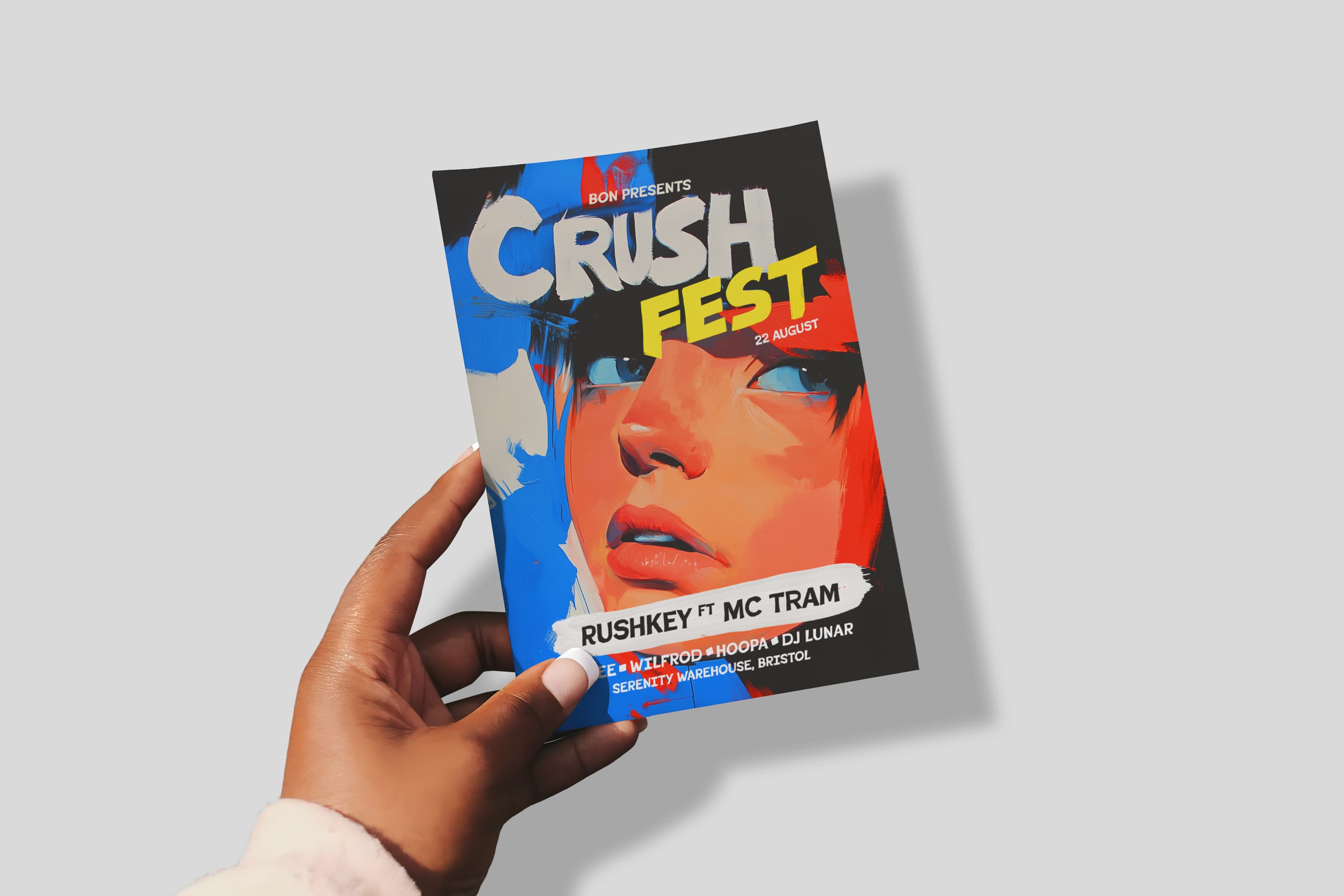
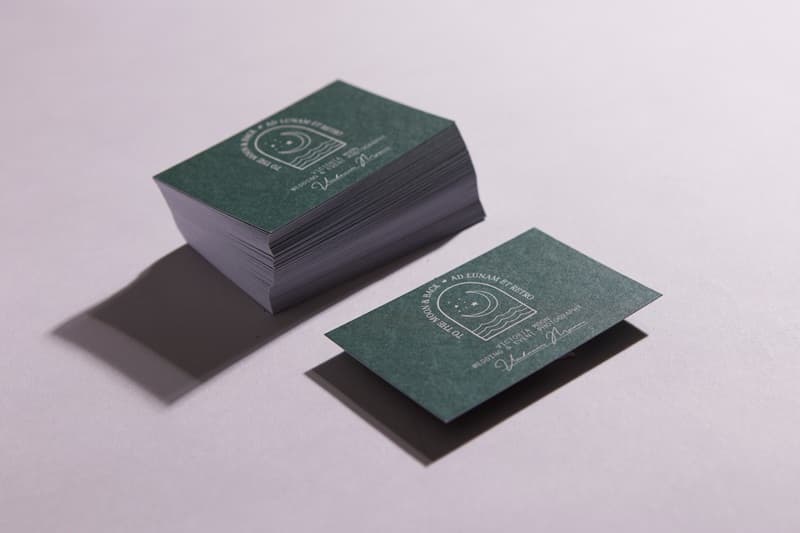
Print needs far more pixels than a screen. For sharp results on flyers, cards and booklets, aim for 300 pixels per inch (dpi) at the finished size. A typical AI image of around 1,024 pixels wide prints sharply at only about 8.7 cm wide. That's fine for a business card, but soft on an A5 flyer.
How to find your image's pixel size
- Windows: right-click the file → Properties → Details → Dimensions.
- Mac: open in Preview → Tools → Show Inspector.
- Phone: most gallery apps show it under "Details" or "Info".
- Easiest: drop it into our free print size checker.
The simple maths
Pixels ÷ 300 × 2.54 = sharp print width in cm.
Example: 1,536 px ÷ 300 × 2.54 = 13 cm.
For posters seen from a few feet away, you can use 150 instead of 300.
| Product | Finished size | Pixels for sharp print (300 dpi) | Minimum for posters (150 dpi) |
|---|---|---|---|
| Business card | 85 × 55 mm | 1,075 × 720 | — |
| A6 flyer | 105 × 148 mm | 1,311 × 1,819 | — |
| DL flyer | 99 × 210 mm | 1,240 × 2,551 | — |
| A5 flyer | 148 × 210 mm | 1,819 × 2,551 | — |
| A4 flyer or poster | 210 × 297 mm | 2,551 × 3,579 | 1,276 × 1,789 |
| A3 poster | 297 × 420 mm | 3,579 × 5,031 | 1,789 × 2,516 |
| A2 poster | 420 × 594 mm | 5,031 × 7,087 | 2,516 × 3,543 |
| A1 poster | 594 × 841 mm | 7,087 × 10,004 | 3,543 × 5,002 |
Quick guide for typical AI image sizes
| Image width | Sharp at 300 dpi up to | Acceptable at 150 dpi up to |
|---|---|---|
| 1,024 px | about 8.7 cm | about 17 cm |
| 1,536 px | about 13 cm | about 26 cm |
| 2,048 px | about 17 cm | about 35 cm |
| 4,096 px | about 35 cm | about 69 cm |
Why AI images are often too small
AI image tools generate pictures at fixed sizes that are designed to be quick and to look good on screens. Those sizes rarely match print sizes, and the shapes are usually square, 2:3 or 3:2 rather than A-size.
Five ways to fix a low-resolution AI image
- Use the tool's upscale option. Many AI generators have an "upscale" or "enhance" button that doubles or quadruples the size.
- Use an AI upscaler or photo editor. Several editors have super-resolution features. Upscale 2× or 4×, then check again.
- Print smaller. An image that's soft on A4 may be perfect on A6 or a business card.
- Keep text separate. Upscaling can make baked-in text look odd. Add text in an editor instead, so it stays sharp at any size.
- Use it as a background, not the hero. A slightly soft image behind crisp text often looks fine.
What we do when your file is too small
Every OlivePrint order includes a free check by a real person. If your image will look blurry at the size you ordered, we'll tell you before printing and talk you through the options.